Tag: technical

  • “I’m not dead yet!”

    Not quitting

    Real life (RL) hits most enthusiast artists and game modders extra hard at some time or another, as it did me (I had the trifecta of work, family, and computer problems). Since most of us do this for fun, we have fit it into our leisure time. Some days, there is practically no free time. But more often, there is time but because of RL, the mental (and/or creative) juice isn’t there. For extended periods of “down time”, the bigger danger is that the interruption and loss of creative motivation might lead to loss of interest in a project altogether. This is especially dangerous for larger projects where the modder/artist might reflect on the enormity of the work that still needs to be done or if a newer shiny bauble attracts them.

    Motivation

    The source of motivation plays a big factor in overcoming this kind of stagnation. In my case, the motivation is internal based (i.e. I do mods that I want to see). Additionally, I’m not modding current games so the pressure from the community isn’t a factor either. My projects are my COUNTER to RL stressors. I relax when I’m editing pixel by pixel. Each of my projects is an experiment in artistic design for me.

    The Torchlight mod was my first real art mod and there are many things I look back on that showed my inexperience. However, I actually get energized at the thought of seeing how it would look now that I’m (slightly) more skilled. I guess what I’m saying is that if you do projects for yourself first and you enjoy it, it’s more likely that you’ll come back after these “unplanned pauses”. I’ve been working most of mine for several years (on and off) and haven’t ever considered abandoning them.

    NOTE

    I originally planned to detail my work on some fire walls for Arena but this kind of just happened. Since I want this webpage to chronicle my artistic processes, I rolled with it. Long story short, sometime this week I’ll do that post 😉

    – Martin
  • The start of the gold rush….

    The tool that saved the  Arena Depixelization Project (ADP)

    Last post, I covered the Arena Font Editor, 1 of 3 tools that I use to edit TES:Arena graphics (and fonts). The font editor is part of the Arena Modding Suite by Hallfiry. The other part of that suite is the 2nd (set) of the three tools I’m going to write about.

    Prior to the Arena Modding Suite, I used the method detailed in a previous post that was laborious and unpractical. Fortunately, this thread popped up on the Bethesda forums. And instantly my little “experiment” became a project and grew in scope. Were it not for Hallfiry, I would have surely abandoned it ADP before it every took off.

    What’s it do?

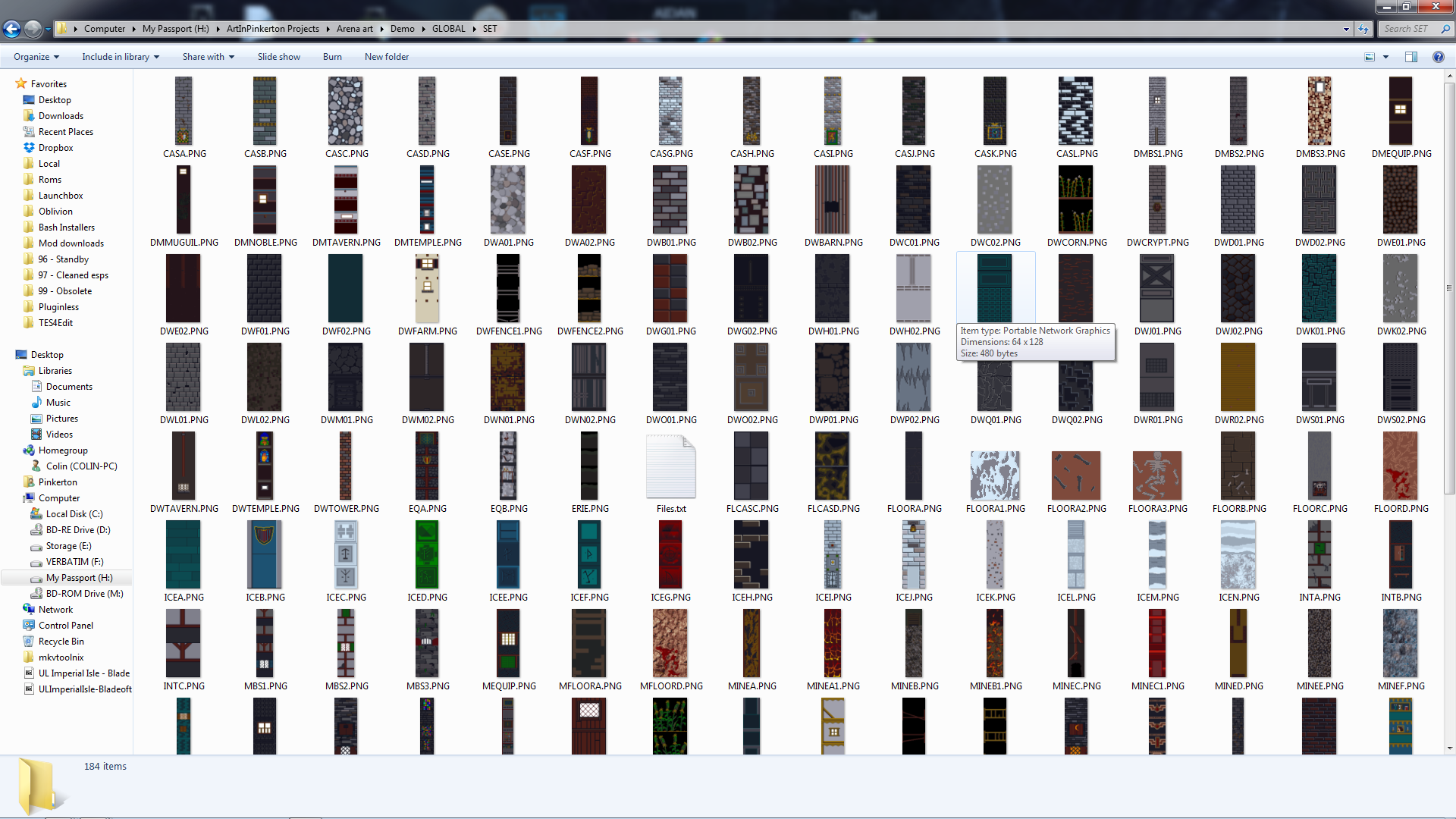
    The main functions of the Arena Modding Suite come in the form of the ArenaPacker and ArenaUnpacker. Rather than being a program that you work in, they are utilities that enable you to easily manipulate the game assets directly in Windows. Both programs directly work with the GLOBAL.BSA. Appropriately enough, one unpacks the entire BSA into a set of folders and the other takes that set of folders and packs it right back up although that is a bit simplistic view of what they do.

    This slideshow requires JavaScript.


    In reality, the programs not only work with the files but they also convert the files to the appropriate format. For ArenaUnpacker, when it extracts the files, it converts the non-standard IMG and SET files into easily edited PNG images. Additionally, it converts the INF files (map asset listings) to a text editor friendly format and SND files to WAVs (although I don’t have any interest in that part). ArenaPacker reverses the process and creates a packed GLOBAL.BSA based on files in the unpacked directory but doesn’t alter those files that were already extracted. This means I can have a working directory of all the files and my changes then “pack” my work-in-progress easily at any time to test in game.


    All work is done from Windows
    All work is done from Windows


    Some notes about the Arena Modding Suite:

    1. Quite a few of the images are compressed in a bizarro compression routine used by Bethesda and this software doesn’t have the functionality to uncompress them. No one had cracked that compression in all the years since the game was released (that is until very recently but more on that next time).

    2. ArenaPacker is designed to compensate for using colors outside those available in palette file by converting non-palette colors to the nearest equivalent color in the palette. While it’s a handy feature, the images should be checked in game to make sure the colors aren’t changed to something wonky (as happened before I learned to use the palette tool in GIMP. If you stick to the exact palette (either by using a palette file or be just using colors in the actual images being edited), this isn’t a problem.

    3. ArenaPacker is a little sensitive to what files are being repacked. When files are extracted, ArenaUnpacker creates a file list of all the files in each directory. This file list is used for when the files are repacked by ArenaPacker. So, if a file is missing or added that isn’t on the file listing, it will crash the program. So if I plan on “trimming” out the IMG/SET files not actually used, I’ll have to edit the file listing. However, it is very easy to fix so this isn’t that big of a deal.

    – Martin

  • Alphabet Soup in Tamriel

    Letters from long ago

    After the recent work on the user interface, I decided to take a hack at changing the fonts. Arena fonts are stored as DAT files (the file extension that a lot of the text tables use). There are 9 separate font files and the game using them each in the game in different places (I.E. the character stat numbers are different than the travel menu summary). However, some of the text in the game isn’t from a font at all but part of a texture or image already premade (e.g. in the spell book, only the spell specifics is actually a font and not part of the image).

    Spellbook
    Only the spell specifics are a font

    Click the font away

    Thanks to Hallfiry’s Arena Modding Suite, I had the tools necessary. Hallfiry’s suite includes a separate program for editing fonts, called the Arena Font Editor. While the program isn’t the most elegant design, it does allow for editing of fonts in a fairly simple manner. The font editor allows for simple pixel checking and unchecking. Blocks checked will show and blocks unchecked wont. The size of each font letter can be set separately and while that size can be changed with the slider in the upper right corner of the editor, it should be noted that the game itself may not look good if the font size is too big.

    Hallfiry's Arena Modding Suite
    Hallfiry’s Arena Modding Suite

    Hacking away

    At first I didn’t understand how to use the editor. It turns out that in order to edit a font, the DAT file needs to be dragged and dropped onto the Font Editor. Additionally, there was no clear explanation on what the slider did. I eventually learned that it allowed resizing of each individual character in the font file (e.g. changing it from 5×5 to 6×6). I had already completed half of the font files when I discovered it’s purpose. The slide proves handy so that you can control the spacing between letters. In other words, you can have it one extra space wide so that the letters don’t touch. I did notice that not all letters were properly aligned to the left side of the box.

    Pop-up text
    Pop-up text

    Testbed

    I have somehow broke one of the fonts (my guess is that it’s out of range of what the engine can handle or maybe it just got corrupted). I have been using the same copy of Arena for a testbed since I started this project back before there were any  tools or this website. There are errant files and folders all over the place in the Arena directory (too include early BSA upackers, WinArena, and other crud). With this latest erratic behavior, I have decided to spend the grueling 5 minutes to download and install a clean copy. This way my efforts will match the end-user’s experience more accurately. Then it’ll be time for the second run through on the fonts to tweak the letters (and fix the broken font file).

    – Martin

    This slideshow requires JavaScript.


  • Polka dot shirts with checkered pants

    Interface

    One item that bothered me was that the interface elements didn’t really match. It seemed as each screen had it’s own style, particularly when you compare the “esc” menu and the inventory. Once I knew I could edit the inventory backgrounds, I wanted to make it match the other screens. However, I discovered that they use different palettes and I couldn’t find the right color that was on both palettes.

    Inventory screen (original)
    Inventory screen (original)
    ESC menu (original)
    ESC menu (original)

    Compromise

    I ultimately had to settle on as close as a match as I could get. Additionally, I tried to port over a few of the stylistic elements of the ESC menu into the other GUI elements to tie them together better.

    – Martin

    Dark green is as good as it gets
    Dark green is as good as it gets
    I used an alternate (unused inventory graphic) and tweaked it to add a little more character
    I used an alternate (unused inventory graphic) and tweaked it to add a little more character
    ESC menu (redone)
    ESC menu (redone)


  • Sometimes it’s easier to walk around then straight through

    Compressed

    Quite of few TES:Arena IMG files are compressed in a crazy-wack-funky format that only the executable can decipher. No one has successfully found a way to decompress them. I had, quite a long time back, experimented with trying to replace them with uncompressed images but didn’t succeed.

    Character screen
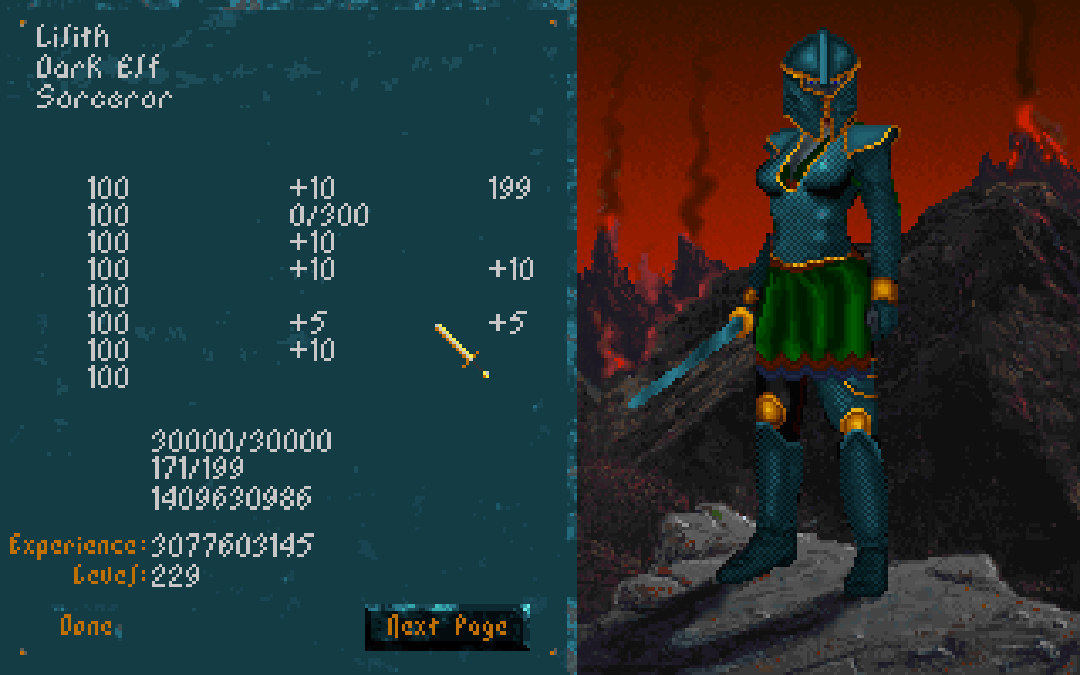
    EXAMPLE: The character screen is two parts: stats on the left and character image/provincial background on the right. Each section is it’s own IMG file that is unfortunately undeciphered as of yet.

    The “method”

    I picked the “QUOTE.IMG” texture to edit because it was quick to find in-game and had clearly defined dimensions (full screen at 320×200). I loaded Arena in DOSBOX and waited for the quote to load (it’s the second screen after loading). Then I took a screenshot and since DOSBOX already uses native resolution, I didn’t need to alter the image. However, when I replaced the “compressed” version with the new one, it didn’t show up in game (it stayed black until the next screen loaded).

    The screenshot version of the Quote image
    The screenshot version of the Quote image

    Wait there’s more

    However today, Hallfiry (the maker of the Arena mod suite I use) revealed to me that it was indeed possible to do what I had attempted. Reinvigorated, I retried my previous method and almost instantly found a flaw in my method involving his program. Basically, his program translates uncompressed image files from Bethesda’s non-standard image format to PNG files for easy editing. When it does the conversions it creates two additional files, .MET and .PAL, containing color and format information to be used when reconverting back to the original format (repacking the archive). I failed to accountfor his program needing these files to successfully convert back the image. So this time I copied a .MET and .PAL from a similar “uncompressed” fullscreen image and renamed them both to match the “QUOTE” image.

    Victory

    This time it worked although it looked normal because I hadn’t edited it’s appearance. What this means is that all full screen IMG files could easy be redone using the “improved” method above. However, I wondered about partial full screen images such as the character screen.  Using DOSBOX debug, I quickly found that the character screen images and made a screenshot. NOTE: Dos debug shows what images are loaded so I also knew which image to replace. The character screen is composed of two images. On the left is the blue-ish stat background and the right is the province background with the character image overlaid on it. I chose the stat background due to simplicity. Using the method above, I only had to add one step. Knowing that the CHARSTAT.IMG covered only a portion of the image, I had to crop the DOSBOX screenshot to just encompass that side. I did some messy edits to test a few things and the results are below…

    Now I can replace fullscreen graphics
    Now I can replace fullscreen graphics

    c

    NOTE: I confirmed my suspicions that not only were the DONE and NEXT PAGE buttons were just part of the background, but the stat names and other misc “yellow” text was too.

    Basically, this means I’m one step closer to a complete retexture. Fullscreen and partial fullscreen graphics are now replaceable to include: the title screen, the quote, all the image scrolls (yes this includes the text and I CAN fix the Uriel Septim typo), character sheets and backgrounds and what ever else is full screen. The only one I’m not sure about is the MAP. I’ll save that experiment for another day.

    – Martin

  • Bring marshmellows and a stick…

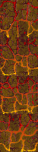
    For this texture set, I wanted to retain the fire/lava vein effect in the walls. Although I had mapped it out from my previous run through all the textures as covered in a previous post, I ended up making quite a few changes. Click the picture below for a closer look.

    Here’s a breakdown of the sequence of events from start to finish.

    1. Create an outline – To do this I selected a dark color and outlined all the rocks letting anything outside the outline be designated for the fire/lava. I followed the source fairly closely but did take some liberties to make some a little bigger.

    2. Fill in the rocks – I initially selected a tan color for the rocks since the original was largely tan-ish. I colored in every rock, one by one. There are easier ways but I enjoy it so I don’t mind using the color every pixel method.

    3. Make tiling template – Since any texture in the set could be next to the other, I had to make sure that they match up naturally and didn’t have any obvious seams. I copied the first 3 left-side columns of pixels in the top most texture and pasted them on each image all the way down. Next, I repeated the process but for the right side. This made all 4 textures (this SET is 4 textures in a column) have the exact same sides. Since the top one was seamless, they now all are seamless.

    4. Make duplicate of image in new layer – The duplicate layer is what I used to create a uniform and consistent lava pattern. To duplicate a layer, right-click on the layer in the layer toolbox, then select duplicate layer. An exact copy of that layer will be placed right underneath the original.

    5. Remove fire/lava from top layer – First, I turned off the bottom layer and make sure the top layer is selected. Then, using the eraser tool, I erased all the fire/lava and miscellaneous areas not already designated as rocks (and thus colored in). This made the lava area transparent but it is still preserved in the bottom layer which is “hidden” from view when turned off.

    6. Create lava layer – First, I turned the bottom layer back on and the top layer off. Then I started with the top image and hand created a gradient covering the whole image starting with yellow at the bottom and working to dark purple(ish) on the top. Then I copied this completed lava gradient and pasted it over the 3 bottom images.

    7. Merge the two images – I “turned on” the top layer (making both layers on), then right clicked on the top layer in the layer toolbox. From there I selected “merge down” so the top layer and bottom layer become a single image with both the new rocks and lava together.

    8. Revise – At this point, I decided that the lighter color rocks didn’t contrast well enough or give the lava the pop I wanted. I loaded another copy of the original texture in GIMP, picked out a new brown but then decided on a slightly lighter color than the original rock outline. Using the bucket paint tool, I filled in all the rocks with the new color. In this process, I also caught a few miscolored pixels and fixed them.

    9. Create depth – Next, I added a lighter faded version of the rock color to the left side of all of the rock outlines. This created a highlight and adds the impression of depth to the rocks.

    10. Touchup – Lastly I offset the image 1/2 on the horizontal plane so I can see how the whole file tiles sideways. Since dungeons and interiors don’t exceed 1 tile in height, I didn’t have to worry about this texture set tiling vertically. To offset in GIMP, press Ctrl + Shift + O and in the “X” box typing 32 which is half the total width of the texture. After clicking the “offset” button, the whole image will shift 32 pixels to the right and placed the edges of the image in the middle. I scanned and fixed any mismatchs or slight errors then shifted the whole image 32 more pixels returning it to its original place.

  • Where do I start….

    Design Document

    ARENA DEPIXELIZATION PROJECT(ADP) 

    Texture mod for The Elder Scrolls 1: Arena


    PURPOSE:

    • Create the (first) TES1:Arena texture mod replacing the down-sampled blocky artwork with smoother less pixelated textures that is hopefully appealing and unique.


    GOALS

    • Create a new unique art style for game
    • Improve texture variety by replacing duplicate textures and ensuring that each texture set and image is unique and stands out from the others.
    • Replace all textures.
    • Create a more cohesive theme amongst textures.


    Limitations

    • TES1: Arena is a very old game and uses unconventional file formats and require special programs/methods to open.
    • Most textures are only 64 x 64 pixels (or in the case of SET files, groups of images with those dimensions) and cannot be resized. This limits the amount of fidelity that can be achieved.
    • Textures are limited to a (external) 256 color palette.
    • In game, many textures in the same SET are placed side by side in seemly random order. That means most textures from the same SET (and their door images) have to be seamless with one another.
    • Some textures are compressed in an unknown way that has yet to be deciphered.
    • The game engine assigns textures based on existing INI files for each type areas but the texture sets aren’t matched very well in multi-level areas. Many areas use different texture SETs for each level but they appear almost arbitrary in how they were selected.  It would take meticulous remapping of all the INI files to create more cohesive appearance.


    Resources

    • Hallfiry’s Arena Suite– It is a set of tools that allows bulk extraction and reinsertion of assets from the Global.BSA (Arena’s game asset container file). It also converts all the non-compressed textures into PNG files for easy editing and then converts them back when reconstructing the BSA file.  This program allows me to have one working directory. When I need to test my work out in the game, I just create a new GLOBAL.BSA from that directory and replace the one in the game directory.
    • GIMP – Freeware alternative to Adobe Photoshop


    Steps:

    1. Complete all SET files to have “Alpha” status. (95% complete)
    2. Complete all Wall and Ground IMG files.
    3. Complete remaining IMG files to “Beta” status.
    4. Tweak textures that don’t show well in game or don’t match.
    5. Fix any individual texture errors (e.g. rogue pixels or misaligned textures).
    6. RELEASE 1.0 (not set but likely on Tesnexus and ModDb.
  • Who’s steering this thing?

    Planning

    One thing I noticed recently on my work w/ Arena is that I don’t really have much of a game plan other than “finish Wall SETS then IMGs”. Considering how much project management is part of my work, I found it odd that I didn’t implement it here. After thinking about it awhile, I came up with two reasons: 1. When I’m home I don’t want to think. 2. This is my hobby so I have never been too worried about how fast or slow it goes…I just do it for fun. Incidentally, for my Torchlight project, I didn’t have this problem (well not to the same degree). In that project, I tackled one levelset at a time. I marked textures to see where they fell in the game ahead of time and work one of them till I was happy how it looked in game. Only then would I complete all the others in that level set. I even had some of the templates saved for similar creatures to minimize duplication of effort.  There was still room for improvement though. I was terrible about writing down and special techniques or tricks that I used. Because of this, if I held off and came back later, I forgot how it was done.

    Mission

    Realizing this now, I feel their are definite ways to plan a little more accordingly. Hopefully in the next week, I’ll enough time to work out a little design document. It might be the next post, not sure yet. I plan to work out the vision, objectives, goals, etc. It might not make too much difference but I think it will help keep me on track with what I want from this project (and I can develop the habit now so the next project will go more smoothly).

  • Ooh…Shiny keys

    WARNING: Potentially boring technical stuff below. Oh and it’s probably unnecessarily long

    Whenever I’m feeling a lack of drive to work on a particular project, I tend to stray to something else till that motivation returns. Although I strive to stick to one project, I do need brief diversion to replenish my enthusiasm now and then. Sometimes, that means working on one of my other projects for awhile. Like this week, I took a brief detour back to my Minecraft project. But other times, I just let my more analytical side run wild…..

    Distractions

    Besides art, I really enjoy the technical aspects of computer programs. I’m perfectly at home trying to decipher file formats and learn out the hows and whys “behind the curtain”. Sometimes it can give insight into the decision-making that led up to some design choice or the other (e.g. how SET files are mostly walls and floors but the outside ground textures are individual IMG files even though they are used in a “SET”-like fashion). Other times, it just gee-whiz knowledge such as  Darkstone can handle high resolution texture or that TES:Arena’s root directory is also the file override directory (overrides the files for the game). I freely admit that I just enough to know I don’t know enough. I can analyze files (e.g. using a hex editor to examine the file byte by byte) but not enough to find the answers I want.

    A.EXE

    That is how I discover odd things here or there about games that I’m working on. Quite awhile back, I discovered that the Arena executable file (a.exe) was compressed. This immediately led to me wanting to uncompress it. It didn’t take me too long to find a dos unzip tool then I just loaded Dosbox then ran the tool from within the dos environment. It was fun for me just to have gotten that far. The executable still worked but it wasn’t as if that opened a treasure box of discovery. The main thing I found was text inside the executable that is used in game however I don’t know if editing it would cause something to break (might be worth trying sometime). Sometimes compression isn’t about size but speed. The computer can load more into memory then uncompress it on the fly. However, that isn’t really relevant to TES:Arena anymore 😉

    DOS DEBUG

    Occasionally  when I’m bored, I load the Dos debugger version of Dosbox. It’s basically the same program that emulates Dos but with a debugging window so you can see “what’s going on in the background”. While I don’t have nearly enough skillz to understand how to copy memory from registers and other such jazz, it has shown me what files were loaded when  particular dungeon or city was entered and that has proven helpful a few times already as I tested my mod. I know it’s possible (in theory) to use the debugger to find the routine for the IMG files that use that difficult compression. Also, one might be able to wait till one of those IMG files are loaded in memory (and thus already uncompressed) and then pull it out of the memory register….no idea how to do it though. (I told you I know enough to know I don’t know enough). I would really like to see if the IMG files would still work “uncompressed” but don’t know how to make that happen.

    MIFs

    All TES:ARENA levels are detailed out in the MIF files while the textures, sounds, etc. that they load are listed in the INF files. Think of a MIF as locations outlined out on graph paper. They determine the layout of all locations: cities, dungeons, stores, etc. INFs are more like the map key dictating what the dungeon will look like aesthetically.  With preliminary exploring with a hex editor , I found each MIF has a specific INF listed in it’s “code”. So when a MIF is loaded, it searches for the INF and loads all textures and sounds from that particular file. If we ever manage to decode the MIF format, we could theoretically create new levels and hand design them too. Occasionally, I’ll load one up but honestly, but I don’t get far (it doesn’t mean I can’t have fun trying).

    INFs

    INFs on the other hand, are all plain text. You’d think that would make them easy to decipher but the format is only partially obvious.  I have fiddled with changing pieces here and there to see the effect in game but only a little and I haven’t found much. There are some odd switches that didn’t seem to have any (obvious) effect on the starter dungeon. I will probably map the INF file structure out at some point when I have more time (ha ha). The bigger problem is that I think the INFs maybe loaded with extraneous junk that doesn’t get used in game. For example, the starting dungeon only has one floor and one exit with no entrance but the file not only list an entrance file but also 6 alternate files sets as well a listing of all the monsters in the game even though only a few are used in that level. My theory is that they used a base template to start with then altered it from there. This confuses the matter if a texture is used in game or not if each level list many textures that aren’t used for that level. It could be trimmed down if I we knew what the structure of the MIF files and could see if those listed IMG files are actually used in that level. Maybe in time.


  • Strange times at Septim High

    Ingame appearance

    As I have worked on several games, I have noticed various oddities. I have covered one before: unused assets. However, there are a few others. In the game TES:Arena, most SET files are reserved either for walls or for floors. The exception is this one:

    WALLC

    Which gives us the below separate ingame dungeons:

    So far, it’s the only SET file to do that. Not sure what happened or why it’s like that. The main challenge with is that while I liked it on the floor against the dark walls, I don’t care for it as a wall texture. I’ll have to go back and tweak/balance it later.  In theory, with further modding of the INF files (they determine which art files each level uses), it can be made so that a different file is used but I’m not inclined at this time to do that.

    Ummm…what

    Right off the bat, I’ll admit that my “working” copy of TES:Arena has been in use since I first started this project (several years now). It is now a Frankenstein-mess of my experiments. I expanded that executable file with an ancient program, expanded all the resource files, installed “WinArena” over top, fiddled with the INFs, etc. So I don’t know if the weird things I see in the game are my fault or not (easily enough to verify but I don’t really care that much).

    I even had a very odd problem of an Imperial City textures completely changing from one style to another. I just walked into a mages guild and came out to a completely different looking city. I wished I had made a video of that weirdness.

    -Martin