Tag: Arena

  • Picking back up steam

    Silence

    I haven’t had a lot of time this summer but I have made tweaks here and there. There are a few textures I’ve done on another computer that I have yet to transfer over to my master files. Things have settled a little and I should be able to refocus my efforts on finishing the SET files as soon as possible.

    Reenergized

    For me, one benefit of extended “down time” on a project is that when I finally am able to return, I have regained a lot of my motivation. Additionally, I come back with “fresh eyes” and see ways to do things differently or better. While it’s a bummer to have to delay working on a project, I know I will always return because I love doing it and to me it’s very relaxing (even when I’m replacing every @#$% pixel in 1994 game with only 256 colors, 64×64 image dimensions and cryptic/bizarre file formats)

    Pictures

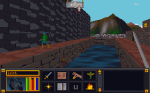
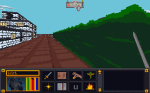
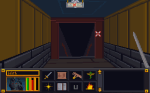
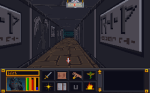
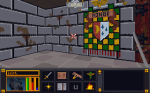
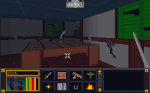
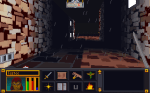
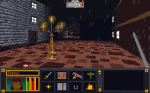
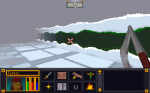
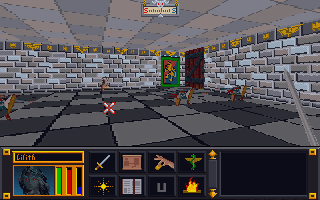
    Here are some photos showing some changes and things I am working or have noted.

    -Martin


  • Bring marshmellows and a stick…

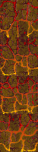
    For this texture set, I wanted to retain the fire/lava vein effect in the walls. Although I had mapped it out from my previous run through all the textures as covered in a previous post, I ended up making quite a few changes. Click the picture below for a closer look.

    Here’s a breakdown of the sequence of events from start to finish.

    1. Create an outline – To do this I selected a dark color and outlined all the rocks letting anything outside the outline be designated for the fire/lava. I followed the source fairly closely but did take some liberties to make some a little bigger.

    2. Fill in the rocks – I initially selected a tan color for the rocks since the original was largely tan-ish. I colored in every rock, one by one. There are easier ways but I enjoy it so I don’t mind using the color every pixel method.

    3. Make tiling template – Since any texture in the set could be next to the other, I had to make sure that they match up naturally and didn’t have any obvious seams. I copied the first 3 left-side columns of pixels in the top most texture and pasted them on each image all the way down. Next, I repeated the process but for the right side. This made all 4 textures (this SET is 4 textures in a column) have the exact same sides. Since the top one was seamless, they now all are seamless.

    4. Make duplicate of image in new layer – The duplicate layer is what I used to create a uniform and consistent lava pattern. To duplicate a layer, right-click on the layer in the layer toolbox, then select duplicate layer. An exact copy of that layer will be placed right underneath the original.

    5. Remove fire/lava from top layer – First, I turned off the bottom layer and make sure the top layer is selected. Then, using the eraser tool, I erased all the fire/lava and miscellaneous areas not already designated as rocks (and thus colored in). This made the lava area transparent but it is still preserved in the bottom layer which is “hidden” from view when turned off.

    6. Create lava layer – First, I turned the bottom layer back on and the top layer off. Then I started with the top image and hand created a gradient covering the whole image starting with yellow at the bottom and working to dark purple(ish) on the top. Then I copied this completed lava gradient and pasted it over the 3 bottom images.

    7. Merge the two images – I “turned on” the top layer (making both layers on), then right clicked on the top layer in the layer toolbox. From there I selected “merge down” so the top layer and bottom layer become a single image with both the new rocks and lava together.

    8. Revise – At this point, I decided that the lighter color rocks didn’t contrast well enough or give the lava the pop I wanted. I loaded another copy of the original texture in GIMP, picked out a new brown but then decided on a slightly lighter color than the original rock outline. Using the bucket paint tool, I filled in all the rocks with the new color. In this process, I also caught a few miscolored pixels and fixed them.

    9. Create depth – Next, I added a lighter faded version of the rock color to the left side of all of the rock outlines. This created a highlight and adds the impression of depth to the rocks.

    10. Touchup – Lastly I offset the image 1/2 on the horizontal plane so I can see how the whole file tiles sideways. Since dungeons and interiors don’t exceed 1 tile in height, I didn’t have to worry about this texture set tiling vertically. To offset in GIMP, press Ctrl + Shift + O and in the “X” box typing 32 which is half the total width of the texture. After clicking the “offset” button, the whole image will shift 32 pixels to the right and placed the edges of the image in the middle. I scanned and fixed any mismatchs or slight errors then shifted the whole image 32 more pixels returning it to its original place.

  • Icy walls of bleh

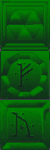
    A little before and after pictures. There are a total of 5 ICE dungeon texture SETS. As you can see in the below images, they are mostly just recolored variants with different symbols. SIDENOTE: I presume they are Daedric symbols commonly seen in later games.

    Here are three of the originals….

    It took a bit to decide how much different, I wanted each to be. Ultimately, I just decided on to make them vary enough so that they would have their own appeal but maintain the overall theme. I haven’t seen these dungeons in game yet (never played far enough I presume). Once I complete all the SET files, I will do a test run through the game to see if I can find them (and others).

    And the same there afterward…

  • Where do I start….

    Design Document

    ARENA DEPIXELIZATION PROJECT(ADP) 

    Texture mod for The Elder Scrolls 1: Arena


    PURPOSE:

    • Create the (first) TES1:Arena texture mod replacing the down-sampled blocky artwork with smoother less pixelated textures that is hopefully appealing and unique.


    GOALS

    • Create a new unique art style for game
    • Improve texture variety by replacing duplicate textures and ensuring that each texture set and image is unique and stands out from the others.
    • Replace all textures.
    • Create a more cohesive theme amongst textures.


    Limitations

    • TES1: Arena is a very old game and uses unconventional file formats and require special programs/methods to open.
    • Most textures are only 64 x 64 pixels (or in the case of SET files, groups of images with those dimensions) and cannot be resized. This limits the amount of fidelity that can be achieved.
    • Textures are limited to a (external) 256 color palette.
    • In game, many textures in the same SET are placed side by side in seemly random order. That means most textures from the same SET (and their door images) have to be seamless with one another.
    • Some textures are compressed in an unknown way that has yet to be deciphered.
    • The game engine assigns textures based on existing INI files for each type areas but the texture sets aren’t matched very well in multi-level areas. Many areas use different texture SETs for each level but they appear almost arbitrary in how they were selected.  It would take meticulous remapping of all the INI files to create more cohesive appearance.


    Resources

    • Hallfiry’s Arena Suite– It is a set of tools that allows bulk extraction and reinsertion of assets from the Global.BSA (Arena’s game asset container file). It also converts all the non-compressed textures into PNG files for easy editing and then converts them back when reconstructing the BSA file.  This program allows me to have one working directory. When I need to test my work out in the game, I just create a new GLOBAL.BSA from that directory and replace the one in the game directory.
    • GIMP – Freeware alternative to Adobe Photoshop


    Steps:

    1. Complete all SET files to have “Alpha” status. (95% complete)
    2. Complete all Wall and Ground IMG files.
    3. Complete remaining IMG files to “Beta” status.
    4. Tweak textures that don’t show well in game or don’t match.
    5. Fix any individual texture errors (e.g. rogue pixels or misaligned textures).
    6. RELEASE 1.0 (not set but likely on Tesnexus and ModDb.
  • The tale of two sets

    Two more textures in timelapse. One very easy and the other still easy but a little more work.

    – Martin

  • Who’s steering this thing?

    Planning

    One thing I noticed recently on my work w/ Arena is that I don’t really have much of a game plan other than “finish Wall SETS then IMGs”. Considering how much project management is part of my work, I found it odd that I didn’t implement it here. After thinking about it awhile, I came up with two reasons: 1. When I’m home I don’t want to think. 2. This is my hobby so I have never been too worried about how fast or slow it goes…I just do it for fun. Incidentally, for my Torchlight project, I didn’t have this problem (well not to the same degree). In that project, I tackled one levelset at a time. I marked textures to see where they fell in the game ahead of time and work one of them till I was happy how it looked in game. Only then would I complete all the others in that level set. I even had some of the templates saved for similar creatures to minimize duplication of effort.  There was still room for improvement though. I was terrible about writing down and special techniques or tricks that I used. Because of this, if I held off and came back later, I forgot how it was done.

    Mission

    Realizing this now, I feel their are definite ways to plan a little more accordingly. Hopefully in the next week, I’ll enough time to work out a little design document. It might be the next post, not sure yet. I plan to work out the vision, objectives, goals, etc. It might not make too much difference but I think it will help keep me on track with what I want from this project (and I can develop the habit now so the next project will go more smoothly).

  • Kicking down the door

    Interior doors


    Last week when I was lacking of motivation to work on the walls sets, I decided to fiddle with the interior doors and more specifically the wooden doors. Those are the ones that connect rooms and hallways and not ones leading out of buildings or dungeons. These particular doors are one single texture that is a door (the entry exit ones have borders that match the interior walls). That door occupies one square of dungeon space (all dungeons are square chunks of one texture). While in-game it appears that there are only two or three different wood door textures, there are actually over a dozen. It’s just that there are only 3 different  textures among them. Here’s a sample of one image among multiple IMG files:

    5 Doors don’t have to equal 1

    What I don’t understand is why Bethesda used multiple files with the same IMG when space and memory was a concern back then. They could have easily used one file through the INF files (the ones that decide what textures to use on each level). However, this does give me an opportunity to add some variation to the ingame art. As such, as with walls and etc., I will make each door appearance different.


  • Where is Bob Ross when you need him?


    Color balancing

    After wandering around in the game, I started feeling a need to go back and tweak some textures. I was just not happy with some of the combinations. Sometimes it’s just best to strike while the inspiration is strong. So I have spent quite a bit of time adjusting colors, cleaning up some of my more “questionable” decisions, and generally making them all play a little better together. I especially tried to tone down the floors and ceiling so they don’t clash or draw away from the walls. Some of the texture combos are much easier on the eyes now. For some of them, I removed the splotches or other weird marks that I had left to stay close to the original…the resolution/texture sizes are just to low to be that craz…er creative.

    Breaking away

    I have stopped trying to adhere strictly to the source material in interest of keeping the textures unique and fun. Additionally, I plan to add some “detail” to the wall sets that are just a group of plain walls  (e.g. a small object on the wall). I want each wall image in a set to be unique but I’ll be sure to keep unadorned walls too to balance the aesthetics.


    Floors darkened to not match the tables and added minor definition to the ceiling
    Floors darkened to not match the tables and added minor definition to the ceiling


    Removed splotches and added shelves
    Removed splotches and added shelves


    Floor tamed, darkened walls and trim at top to better see the gold (now just need to do the ceiling)
    Floor tamed, darkened walls and trim at top to better see the gold (now just need to do the ceiling)


  • Strange times at Septim High

    Ingame appearance

    As I have worked on several games, I have noticed various oddities. I have covered one before: unused assets. However, there are a few others. In the game TES:Arena, most SET files are reserved either for walls or for floors. The exception is this one:

    WALLC

    Which gives us the below separate ingame dungeons:

    So far, it’s the only SET file to do that. Not sure what happened or why it’s like that. The main challenge with is that while I liked it on the floor against the dark walls, I don’t care for it as a wall texture. I’ll have to go back and tweak/balance it later.  In theory, with further modding of the INF files (they determine which art files each level uses), it can be made so that a different file is used but I’m not inclined at this time to do that.

    Ummm…what

    Right off the bat, I’ll admit that my “working” copy of TES:Arena has been in use since I first started this project (several years now). It is now a Frankenstein-mess of my experiments. I expanded that executable file with an ancient program, expanded all the resource files, installed “WinArena” over top, fiddled with the INFs, etc. So I don’t know if the weird things I see in the game are my fault or not (easily enough to verify but I don’t really care that much).

    I even had a very odd problem of an Imperial City textures completely changing from one style to another. I just walked into a mages guild and came out to a completely different looking city. I wished I had made a video of that weirdness.

    -Martin

  • RETRO POST : The long road to Arena

    Why Arena?

    *This post was originally drafted in 2012 but never submitted. I have revised and updated it.

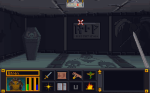
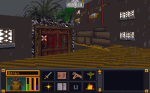
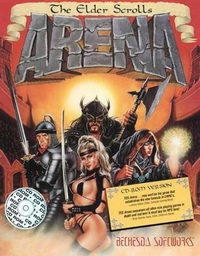
    The next brief diversion was an even older game called The Elder Scrolls:Arena. It is the first game in one of my favorite video game series and I did play this one a lot when it first came out in ’94.  I found a website that packaged it (and it’s sequel) in a neat, easy to install package. But, the low resolution graphics (320 x 200…trust me it’s very low) were so pixelly that it was hard to play and enjoy for me, particularly in the cities where anything in the distance was just a blob of small blocks.

    ArenaBox

    Mods?

    After some quick checking, I found that there were NO graphic altering mods out there. No one on the forums seems to think it was even possible. I found that hard to believe and felt the “challenge bug” nibbling at my toes. I wanted to find out how to do it. But I only got as far as checking how the files were stored (container file ending in .bsa). I did find that someone attempted to remake the game (didn’t get finished).  It claimed to allow you to extract the art file out of the BSA file for you. BUT in actuality, it converts them to a common image format that the original game can not recognize and thus was not a viable option. Due to real life busyness (yes I mean busy-ness), this too faded to the background. Eventually, I did come back to it later (much like Darkstone) and succeeded in extracting all the files (using a old program).

    You did what?

    Even though the image files were not in any common standard format, I figured out how to open them in GIMP (free editing software). This involved loading the images as RAW images with a offset header of 12 (think “ignore first 12 bytes of file”) and then loading a special palette files.  I could then save it as a RAW image. The drawback to this method was that for images that had the 12 bytes that needed to be ignored (all the IMG files), the saved image wouldn’t have those bytes. That meant that I had to (BRACE YOURSELF) open the file in a hex editor (think super nerdy ), copy all the bytes, then open the original file and paste the copied bytes over starting at byte 13.  Then, I tossed that file in main file directory as the game. The only way to see how it worked was to load the game and look for the texture.  It was a overly cumbersome process that eroded my enthusiasm and by the time my “interest” (i.e. attention span) waned, I only completed 8 textures.  Although I moved on to a different project, I came back once in a while to do a texture or two. I deluded myself in thinking that over time (probably decades), I would eventually finish it.

    Progammer in Shining Armor

    It wasn’t until Hallfiry released his “Arena Modding Suite” that the project took off in a major way. His tool not only unpacked the entire BSA resource file (BSA = Bethesda Softworks Archive) but converted most of the textures into PNG files for easy editing. Afterwards, it could be used to “repack” the BSA easily without destroying the “working folder” and converting the files back to the original format. Besides some textures that used a funky compression, it had removed the technical barriers to changing images in the game. Now to date, I have completed 126 of 172 SET files (wall texture sets) with 12 additional ones that aren’t even used in game. The two biggest challenges for me now are: making unique interesting textures that work well in game (after having already made 126 of them) and figuring out how to do some of the more organic textures to match my style (since the pixel dimensions are very limited). 64 x 64 does limit the amount of creativity I can use.